
Track “key events” from Google Analytics 4 (GA4) as Conversions

Track “key events” from Google Analytics 4 (GA4) as Conversions

April 24, 2026
Disclosure: Our content is reader-supported, which means we earn commissions from links on Crazy Egg. Commissions do not affect our editorial evaluations or opinions.
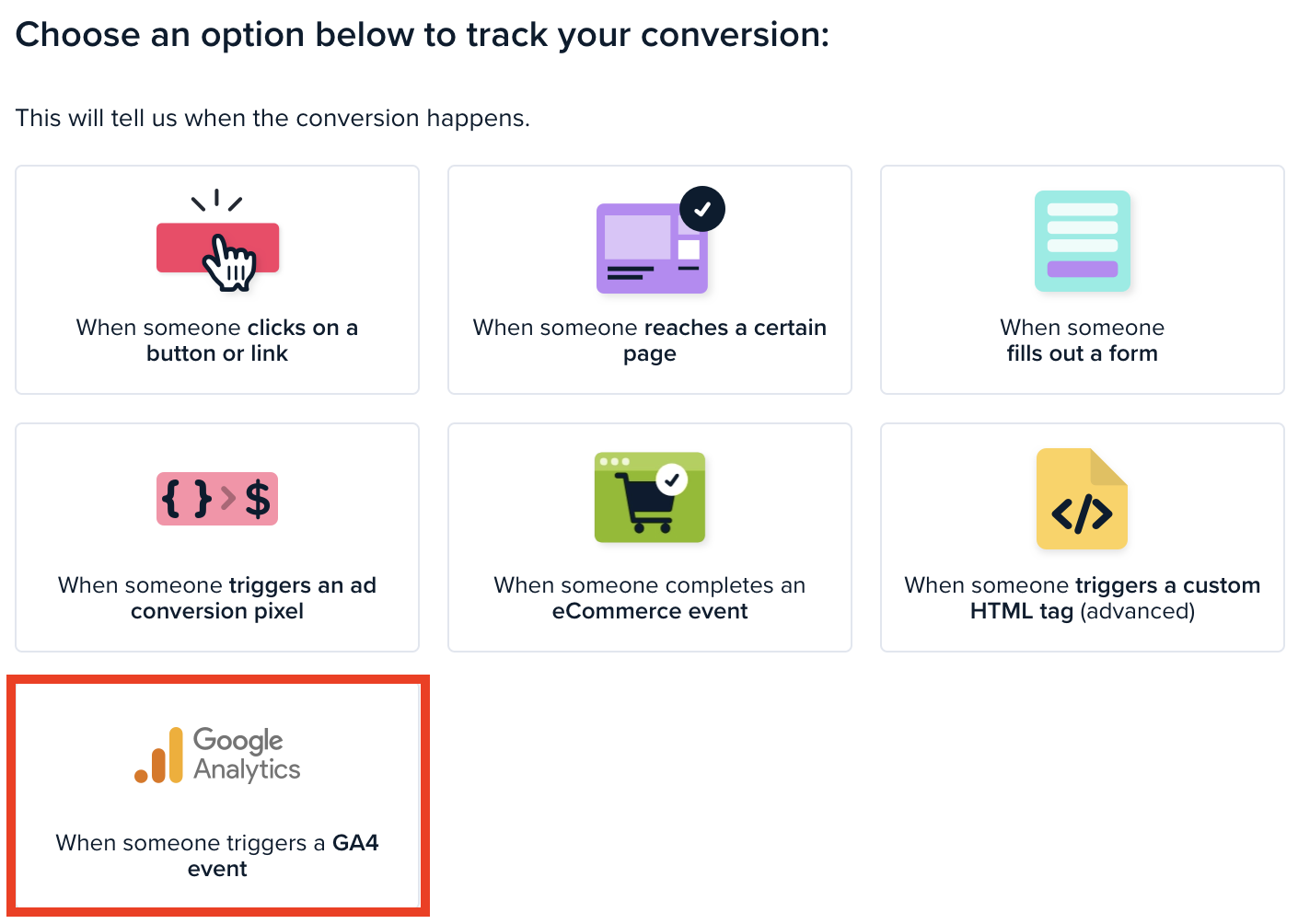
If you use GA4, you might already have done the work to track visitor conversions as “key events”. You can now track these events as Conversions in Crazy Egg, without adding new tags or code.
To track a “key event” in GA4 as a conversion in Crazy Egg:
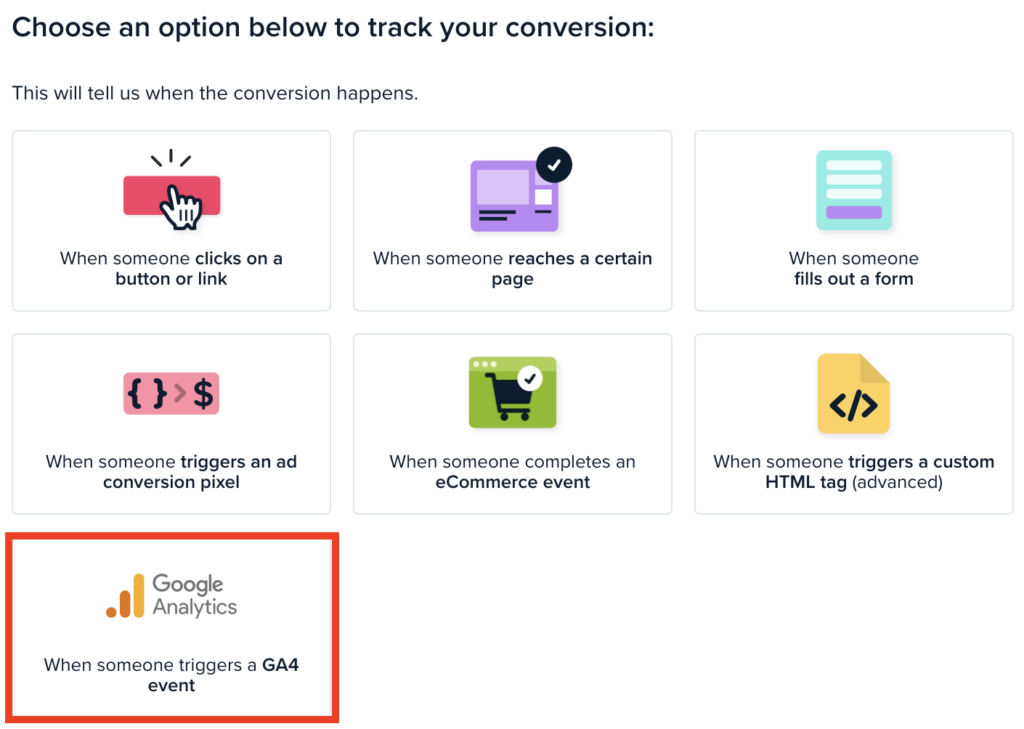
Tracking these gets more accurate conversion data in your Crazy Egg account, which helps you:
- See which A/B Testing variant actually drives conversions, not just clicks
- View Heatmaps segmented by converters vs. non-converters, so you see what page content actually drives conversions
- Watch Recordings of visitors who converted, vs. those who didn’t
- Trace the exact path that converting visitors took in Funnels
Crazy Egg can detect any GA4 conversion event, as long as the event is fired in the visitor’s browser. This includes common setup methods like a Google Tag, Google Tag Manager (GTM), and many Customer Data Platforms (CDPs). However, the event will not be detected if it’s only forwarded server-side or processed after it leaves the browser.


 English
 Dutch
Dutch French
 German
 Italian
 Japanese
 Korean
 Portuguese
 Russian
 Spanish